Guides
Rack elevation diagrams: what to record for every U
A rack elevation is only as good as the data behind it. This checklist covers what to record for each rack, each device and each empty unit, so the diagram answers real questions instead of just looking tidy.
A rack elevation diagram is a scaled drawing of a rack, usually front and rear, showing what is mounted in each rack unit. It is the view people reach for when they plan a new server, look for free space, or need to tell a remote hands technician exactly which device to pull. It is also one of the first documents to go out of date.
The cause is almost always the same: the elevation was drawn as a picture, not built from data. This guide lists what to record for every rack and every rack unit, so the elevation can be produced from the records and stays correct as the rack changes.
Rack units in one paragraph
Equipment height in a standard rack is measured in rack units, written U or RU. One U is 1.75 inches (44.45 mm), as defined by EIA-310 and its international counterpart IEC 60297. Front panels are made slightly shorter than a whole number of units, so adjacent devices do not jam. The mounting rails carry holes in a repeating three-hole pattern per unit, and the most common full-height cabinet in server rooms is 42U, with taller cabinets such as 48U also available. The mounting width of a “19-inch” rack refers to the front panel width of the equipment, 482.6 mm.
Rack units are normally numbered from the bottom, and the identifier scheme of the TIA-606 labeling standard counts from the bottom of the usable space too. Not every rack has numbered rails, and conventions vary. Check before you record anything, and write the convention down.
What to record for each rack
Before any device goes into the elevation, the rack itself needs a record:
- Identifier and location: room, row and position, or floor grid coordinates. See the TIA-606 labeling guide for a location-based naming scheme.
- Rack type: height in U, width, depth, and whether it is a four-post cabinet or a two-post frame. Depth decides which equipment fits at all.
- Static load rating, so weight can be checked before heavy equipment such as UPS units or storage shelves goes in.
- Power budget: the power allocated to the rack, the PDUs installed and the feeds they come from (for example feed A and feed B).
- Airflow orientation: which side faces the cold aisle. Most equipment draws air in at the front and exhausts at the rear, and the rack should match the aisle layout.
- Owner and contacts, especially in shared rooms or colocation, along with notes on doors, locks and access.
What to record for each device
Each mounted device is one record, positioned in the rack. The essential fields are:
- Position: the rack unit it occupies, stored as one number by convention (commonly the lowest unit), plus its height in U. From these two values the elevation can be drawn and overlaps can be refused.
- Face: front or rear mounted. Half-depth equipment, such as many switches and patch panels, can share a unit with another device on the opposite face, so the face is part of the position.
- Model: manufacturer and model, linked to a model definition that carries height, depth, weight, power draw, power supplies and the port layout. Defining a model once and reusing it is far more reliable than retyping the specification for every unit.
- Name and asset data: hostname or functional name, asset tag, serial number, purchase and warranty dates.
- Status: planned, installed, faulty or being decommissioned. A planned device on the elevation reserves its units, which prevents two projects from claiming the same space.
- Power connections: which power supply is plugged into which PDU outlet, and which feed that PDU is on. This is what tells you whether a device survives the loss of one feed.
- Network connections: each connected port with the cable and the far end. An elevation that shows ports and patch cords turns into a cabling tool, as described in how to document patch panels and cable runs.
- Airflow direction of the device itself. Network switches in particular are sold with front-to-back or back-to-front airflow, and a switch mounted the wrong way round blows hot air into the cold aisle.
Empty space is data too
Free rack units are the most frequently requested information in any server room, so record them deliberately rather than leaving them as gaps in a drawing:
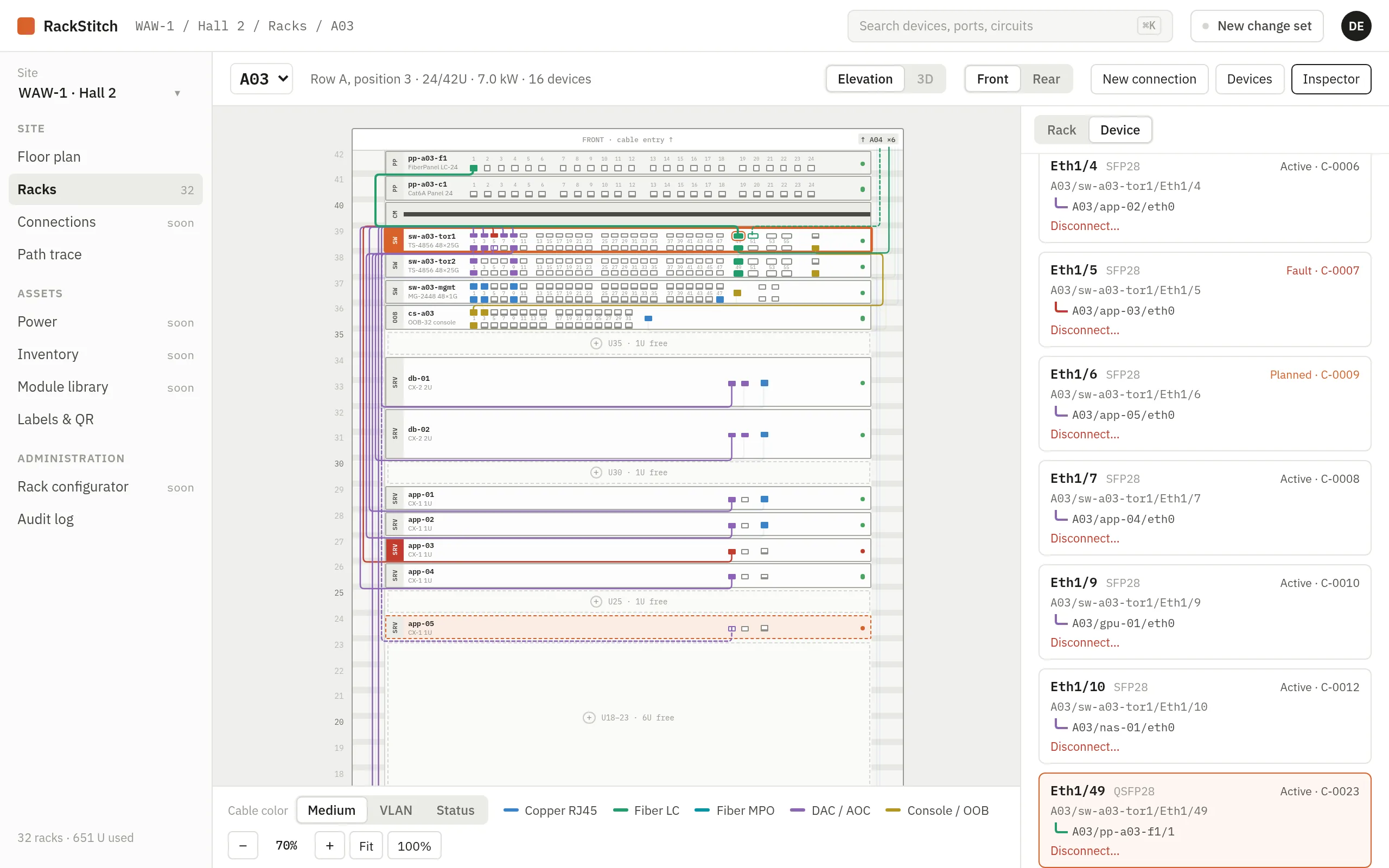
- Free units, ideally with a quick count of contiguous free space (“6U free at U18 to U23”), which is what matters when a 4U server arrives.
- Reserved units held for a planned installation or for future growth.
- Blocked units that cannot be used, for example behind a cable manager or above a device that needs clearance.
- Blanking panels. Open gaps let hot exhaust air flow back to the front of the rack and mix with the cold intake air. The ENERGY STAR data center guidance presents blanking panels as a low-cost measure that makes cold supply air pass through the equipment instead of over or under it. Recording where blanking panels are, or are missing, makes the gaps visible during audits.
Equipment that does not occupy a U
Some important components are not in any rack unit. Vertical PDUs mounted in the rear channel, vertical cable managers, side-mounted patch panels and top-of-rack cable trays all affect what can be installed and where cables run. Record them as rack components with their position (left or right, rear channel, top), and show them on the rear elevation. A rack whose PDUs are not documented cannot be checked for power redundancy.
Front and rear both matter
Many elevations show only the front, because that is where the device faces are. The rear is where the power supplies, PDUs and most cabling are, and it is where most mistakes happen: both power supplies of a server plugged into the same PDU, a cable pulled from the wrong device, a rear-mounted device forgotten because it is invisible from the front.
Keep a rear elevation from the same data. It should show the rear faces of the devices, the PDUs with their feed, and which power supply goes to which outlet, ideally colored by feed so a single-feed device stands out.
Drawings versus data
A diagram drawn by hand in a drawing program looks the same as one built from records, until the first change. After that, the drawing needs a manual update that competes with every other task, and it falls behind. A data-driven elevation is redrawn from the records each time it is viewed, so it can only be as wrong as the records are, and the records are easier to keep current because each change touches one device instead of one picture.
The data also answers questions a picture cannot: which racks have 2U free with 400 W of power left, which devices have both supplies on feed A, which models are out of warranty. If you still keep elevations as drawings, start by moving the device list into structured records; the drawing can follow.
Keeping the elevation current
- Plan in the elevation. Place new devices as planned before installation; the installer works from the plan and the units are reserved.
- Confirm after the work. Planned devices become installed when the work is done, and removals are confirmed the same way.
- Label devices from records so the label and the elevation always agree.
- Audit one rack at a time, front and rear, comparing the rack with the elevation.
A checklist for every U
For each rack unit, the elevation should be able to tell you: is it occupied, free, reserved or blocked; if occupied, by which device, on which face, of which model; how that device is powered and from which feed; which of its ports are connected and to what; which way it moves air; and whether the record is planned or confirmed. If the answer to any of those requires a visit to the rack, that is the next field to add to your records.
Where RackStitch fits
RackStitch, the documentation tool we build at Kynologic, draws front and rear elevations from its records: devices with their ports, patch cords colored by medium, VLAN or status, and on the rear the PDUs with power supply connections colored by feed. Device models come from a library that holds height, depth, power, airflow and the port layout. New devices are dragged from a model palette into a change set as planned, with collisions blocked, and applied after review; a 3D view of the rack is also available. More on the rack diagram page.
Sources
- Wikipedia, Rack unit (EIA-310 and IEC 60297, 1.75 in / 44.45 mm).
- Wikipedia, 19-inch rack (panel width, hole pattern, front-to-rear airflow).
- ENERGY STAR, Manage airflow for cooling efficiency (blanking panels, hot and cold aisles, recirculation).
- Cabling Installation & Maintenance, ANSI/TIA-606-B standard approved for publication (patch panel position counted in rack units from the bottom).