Labels · QR codes
QR code labels for racks, devices and both ends of every cable
Print labels straight from your documentation and stick them on racks, devices and patch cords. Scan one with any phone and you see what it is, where it sits and where the other end of the cable goes.
Labels that lead to the documentation
A printed name on a cable tells you what someone called it on the day it was labeled. A QR code from RackStitch leads to the current record: the rack, the unit, the port and the far end as they are documented now. When a device moves, the label stays valid, because the code on it is permanent and the record behind it is updated.
What you can label
- Racks: location, occupancy and power at a glance.
- Devices: rack, unit, model, serial number and connected ports.
- Cables: a label for each end, each one showing where the other end is.
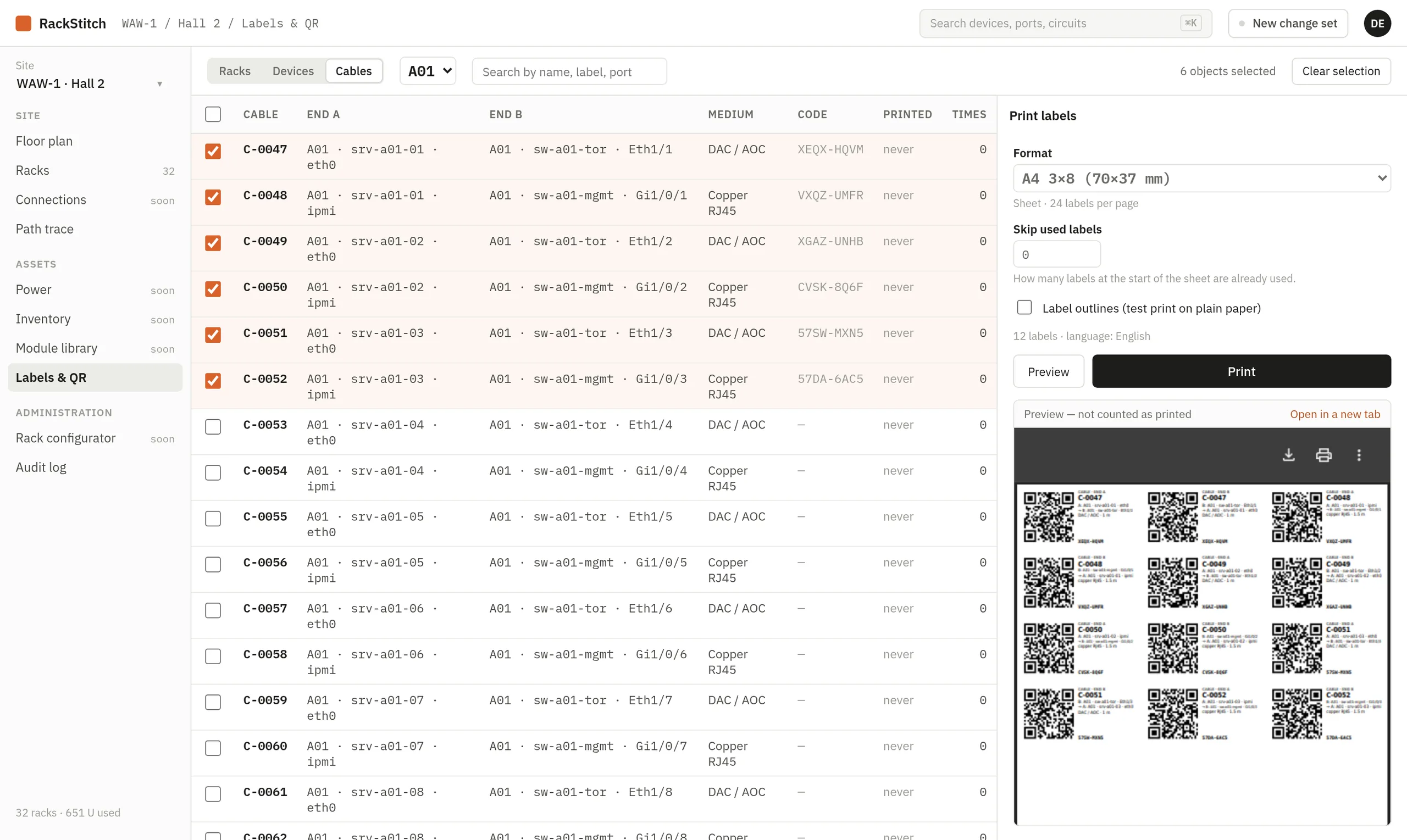
On the Labels & QR screen you select racks, devices or cables, choose a format and check the preview before anything is printed; the preview saves nothing. “Skip already printed” avoids duplicates, and printing counts reprints, so you know which labels have gone out. A device label can also be printed directly from the device window.
Formats and printers
Labels are produced as PDF files, so they print on any printer. Built-in formats:
- A4 sheets with 3×8 labels of 70×37 mm;
- A4 sheets with 2×7 labels of 99×38 mm;
- 12 mm and 24 mm label tape;
- 50×25 mm labels on a roll for thermal label printers.
Each label carries the QR code, a short human-readable code and a few lines of description, fitted to the label size. If you use a different label stock, tell us the size and we will match it.
What the phone shows after a scan
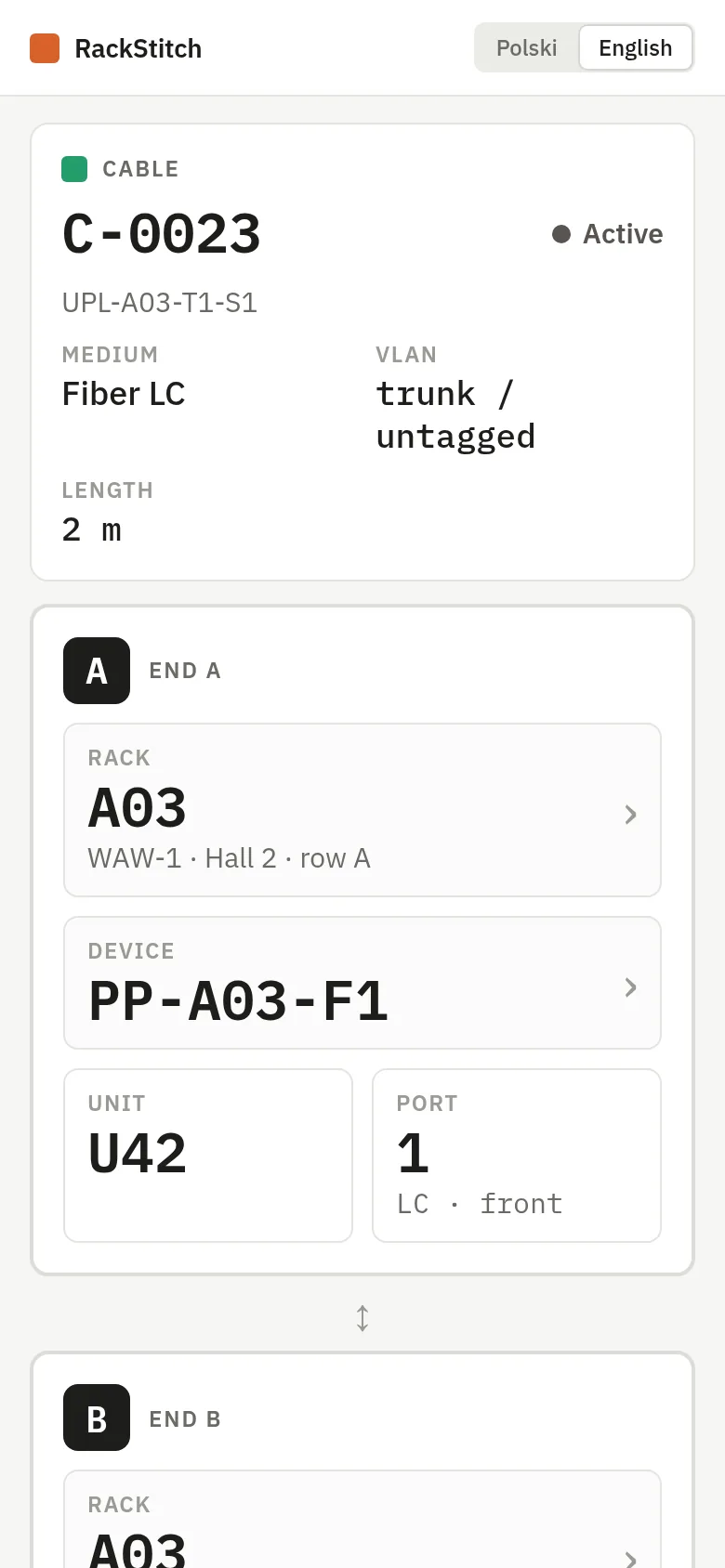
Scanning a label with any phone camera opens a clean mobile page in the technician's language. For a cable: both ends with rack, row, device, unit and port, plus medium, VLAN and length. For a device: rack, unit, model, serial number and connected ports. For a rack: location, occupancy and power. “Open full view” switches to the complete application, for example to trace the cable further.
Your layout stays private
The QR code holds only a short link. The details appear after signing in, and only for members of the organization that owns the record. A label photographed by a visitor reveals nothing about your room. In the self-hosted edition the codes point to your own instance address, set once in the setup wizard; see self-hosted and EU cloud.
Labeling as part of getting started
Labels are also the easiest way to check imported data. A typical start: import the spreadsheet you have, print labels rack by rack, walk the room, and fix whatever the spreadsheet got wrong while you stick them on. The audit log shows what was corrected. After that, every rack, device and cable has a label that leads back to an accurate record. See how labels look in the live demo.
Demo
See your own server room in RackStitch
Write to us and we will answer your questions and help you get started. Prefer to look on your own? The live demo is open to everyone.
Sample data, restored every 24 hours. See pricing