Rack elevations · Rack diagrams
Rack diagram software that shows every port and patch cord
RackStitch draws each rack in your server room to scale: devices in their rack units, ports in their real positions and patch cords in the cable channels. The rack diagram stays current because it is drawn from the same data your team updates every day.
Why rack diagrams go out of date
A rack elevation drawn once in a diagram tool, or kept as a tab in a spreadsheet, is accurate on the day it is made. After that, every new server, moved switch and swapped patch cord has to be copied into it by hand, and sooner or later someone forgets. The result is familiar: a drawing nobody trusts and a technician who has to open the rack door to find out what is really there.
RackStitch treats the rack diagram as a view of your documentation, not as a separate drawing. Racks, devices, ports and cables are records. The elevation, the port table, the cable list and the floor plan are all drawn from those records, so a change entered once shows up everywhere.
Front and rear elevations, unit by unit
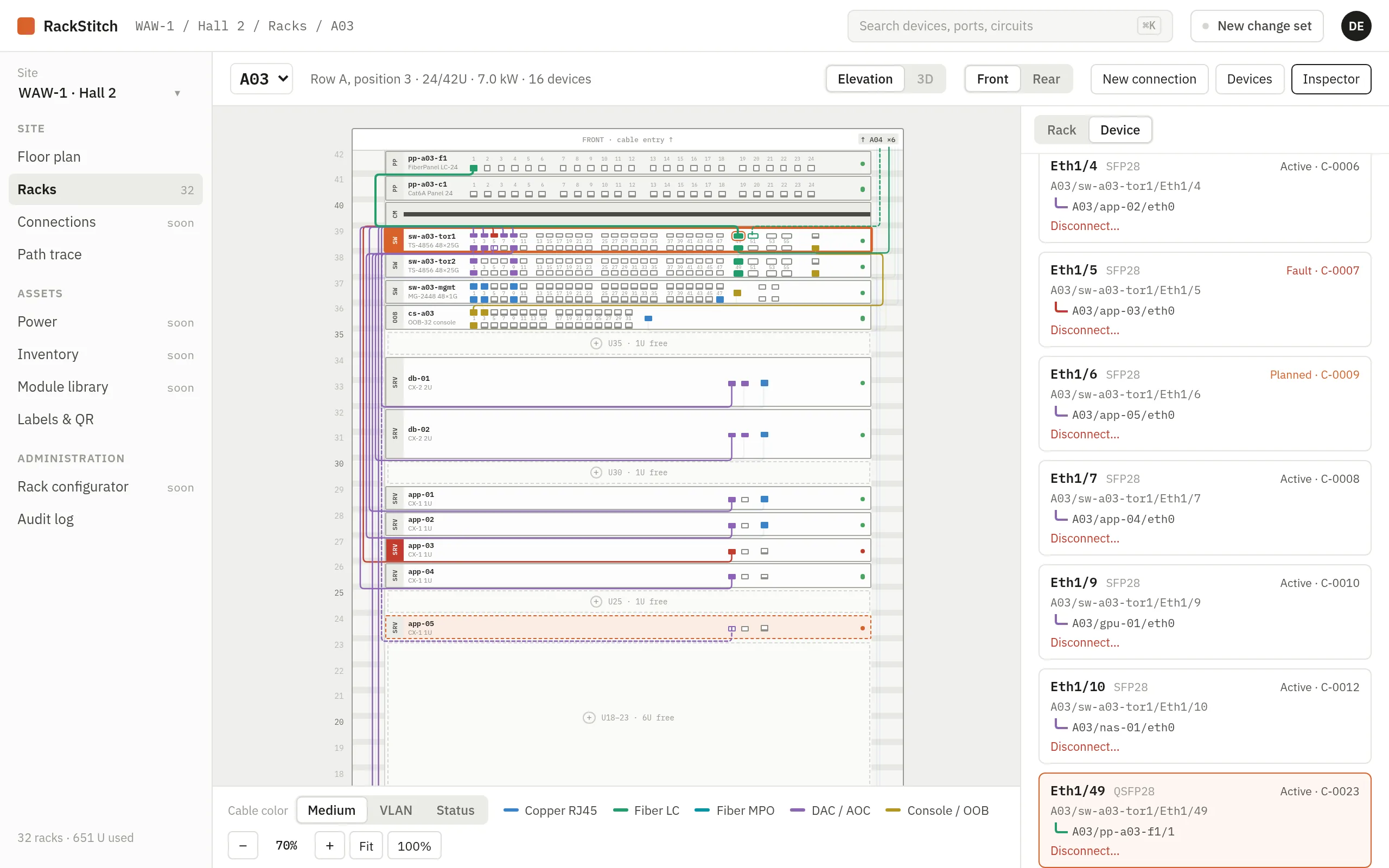
Each rack is shown from the front and from the rear, with its height taken from the rack type, from small wall cabinets up to 48U. Devices sit in their units with their real faceplates, and every RJ45, SFP and MPO port is drawn where it is on the hardware.
- The front view shows data ports and the patch cords routed through the side channels.
- The rear view shows power supplies and the A and B rack PDUs in feed colors, with a line from each outlet to the PSU it powers.
- Cables can be colored by medium, by VLAN or by status, with a legend, so faults and planned work stand out.
- Click a device and its cables light up; click a port and you see where it goes.
- A 3D view shows the same rack as a solid cabinet with doors you can open, front, rear and side cameras and the cables of the selected device.
Port-level device details
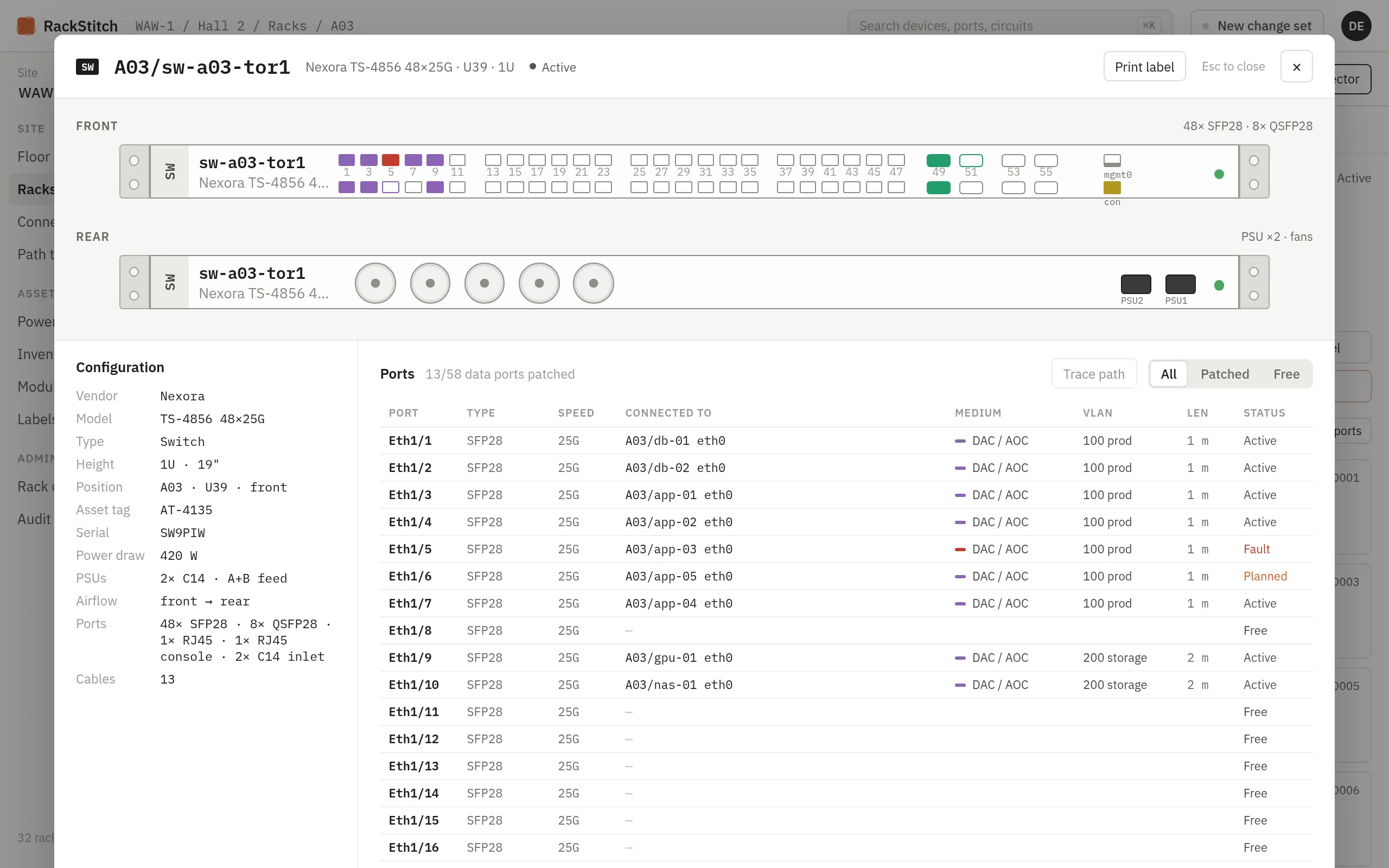
Double-click a device to open its front and rear panels at full size, with 19-inch rack ears, power supplies, fans and airflow direction. Next to the drawing is a port table with speed, far end, medium, VLAN, length and status. Clicking a port on the drawing selects it in the table and the other way round, and a filter shows only free ports when you need a spare one.
Devices come from a model library: reusable templates with height in rack units, depth, power draw, airflow, power supplies and the exact port layout on the front and rear. Shared models are maintained by Kynologic; you can duplicate one and adjust it, or build your own in the editor, and move models between installations as JSON files. The same library holds patch panel models with their front-to-rear port mapping, which is what makes cable tracing through patch panels work.
Adding equipment without collisions
To place a new device, drag a model from the palette onto the rack. RackStitch previews where it will land and blocks positions that collide with other equipment or do not fit. Devices can be moved by dragging or from the keyboard.
Nothing changes immediately. A new or moved device goes into a change set as planned work and is drawn dashed in the elevation. When the job is done on site, an administrator reviews the change set and applies it, or discards it and everything rolls back. Each step is written to the audit log, so you can always see who changed what and when.
From one rack to the whole room
Racks live on a floor plan that is drawn to scale: rows facing a cold aisle, enclosed boxes, solid and mesh walls, sliding doors, entrances and the pillar that takes the place of a rack. Each rack is colored by how full it is or by how much power it draws, and a double-click opens its elevation. The rack inspector keeps the owner, vendor, serial number, dates and notes, and saves edits as you type.
New racks are added with a rack configurator that shows free and blocked positions on the plan. Rack types define height, dimensions, load rating, power in kW and the PDUs that come with them. The power side of each rack is described on the power documentation page.
Who uses it
RackStitch is built for IT managers, data center technicians and service companies that look after server rooms for several clients. Each client is a separate organization with its own data, and each user has one of four roles: viewers read, editors plan changes, administrators apply them and manage the library, owners manage access. You can try the rack view yourself in the live demo, or read how QR labels connect the diagram to the hardware.
Demo
See your own server room in RackStitch
Write to us and we will answer your questions and help you get started. Prefer to look on your own? The live demo is open to everyone.
Sample data, restored every 24 hours. See pricing